medAspis releases updated versions of the medAspis Connector+ app at regular intervals. Below you will find instructions on how to update the software manually.
Simply swipe up on the medAspis Speed Scanner on the home screen to open the list of apps on your device (Android users will be very familiar with this)
Select the ‘F-Droid’ app. This programme is responsible for updates to the medAspis Connector+ app.
Once you have opened the F-Droid app, you should see the medAspis Connector+ app on the screen; if not, tap ‘Latest’ on the bottom row. If you still cannot see the medAspis Connector+ app, try using the search function in the bottom right-hand corner and search for ‘medAspis’. The app will then appear.
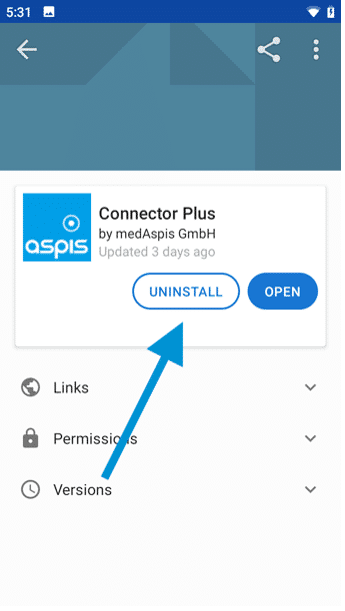
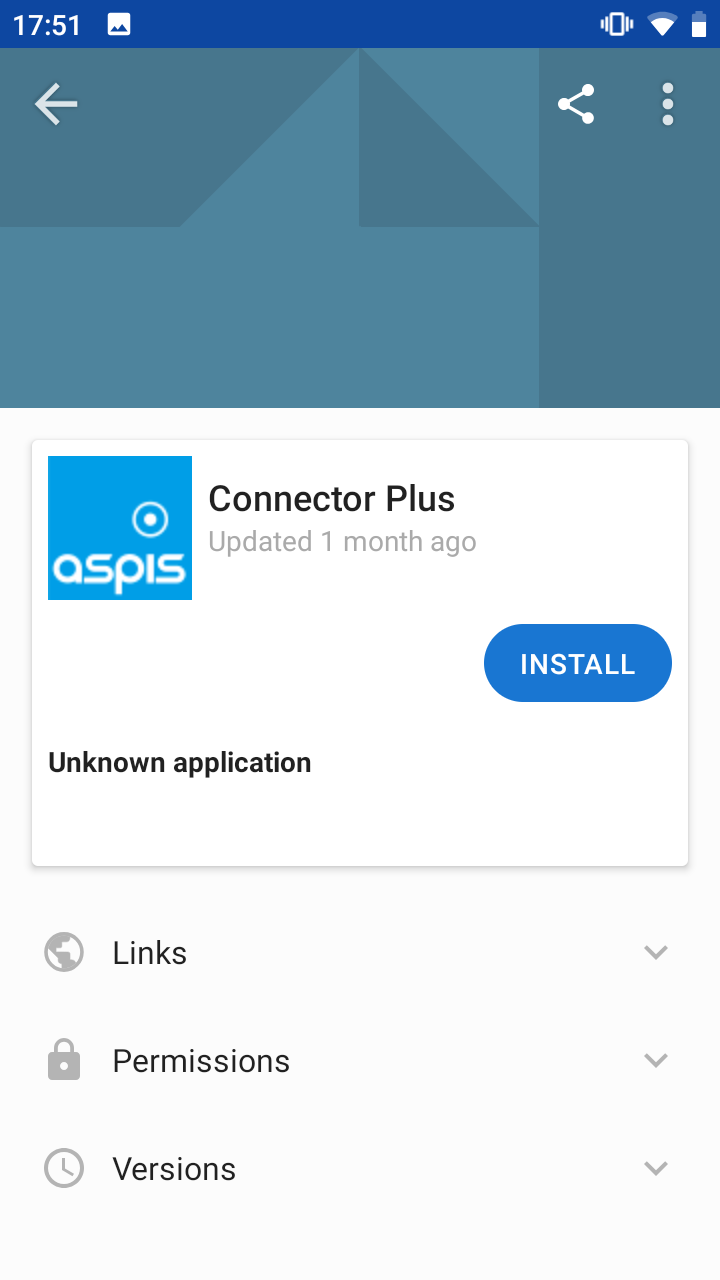
Click on the medAspis Connector+ app; details of the medAspis application will appear.
You will then be asked whether you wish to uninstall or open the medAspis-Connector+ app. Please select ‘Uninstall’ and complete the uninstallation process. Don’t worry, the app won’t be lost; a fresh version will be downloaded.
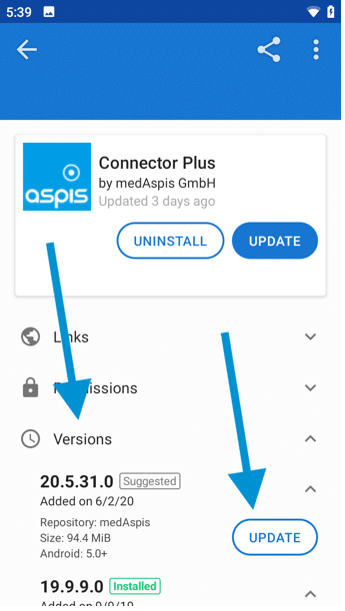
Please then click on ‘Versions’. Several versions will be displayed for you to choose from. Tap on the top version labelled ‘recommended’ (this is always the most recent version).
Tap ‘Install’ and follow the installation instructions.
Automated Software Updating
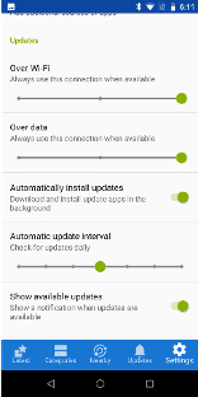
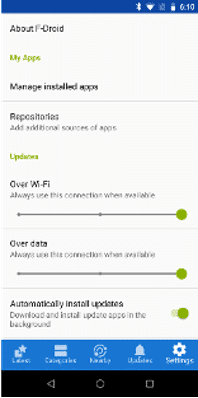
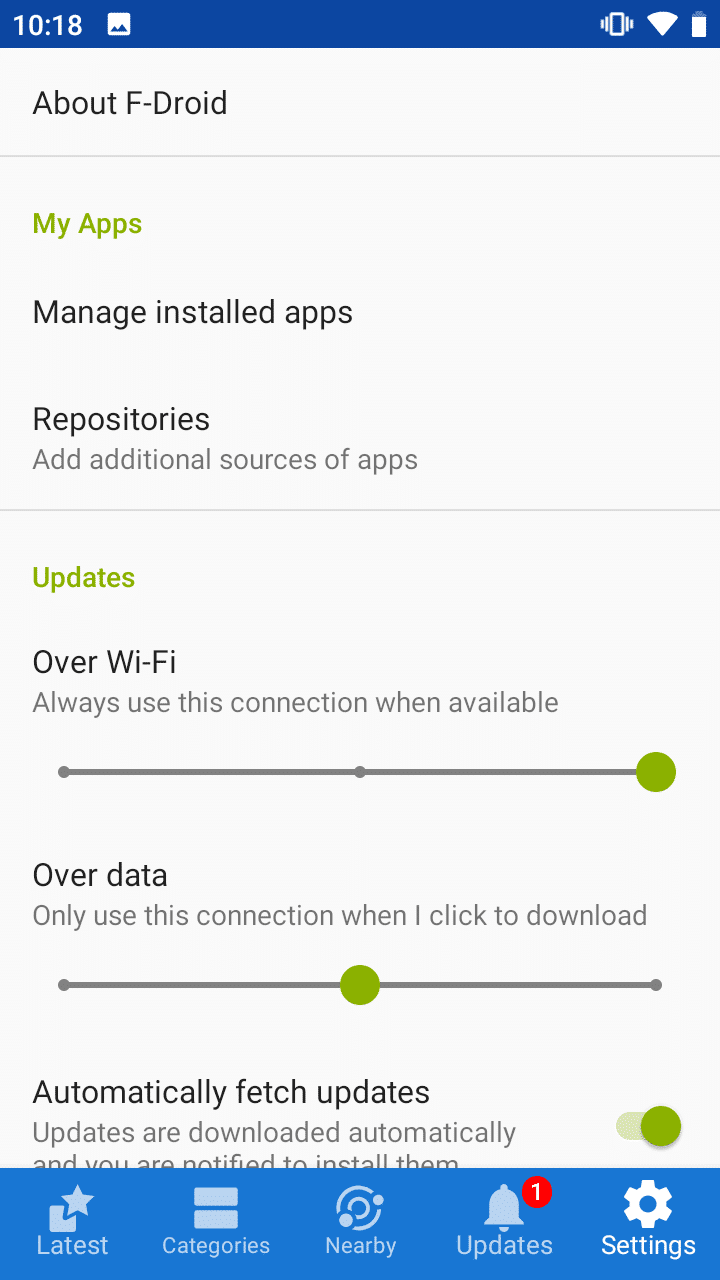
Open F-Droid (as you would for a manual software update) and click on Settings. A page will open that looks like the one shown in the image below. Scroll down until you reach the ‘Automatically install updates’ option.
Configure the automatic update as shown in the screenshot. Ensure that the medAspis Speed Scanner remains connected to the internet. As soon as a new version of the software is available, F-Droid will detect it and update the application.
Installing Test Versions of the medAspis app
To use a test version of the software, the existing app must be deleted and a test version of the medAspis Connector+ app must be downloaded from a test repository on F-Droid. The medAspis Connector+ app for the production system is in the ‘medAspis’ repository, whilst the test application is in ‘medAspis test’.
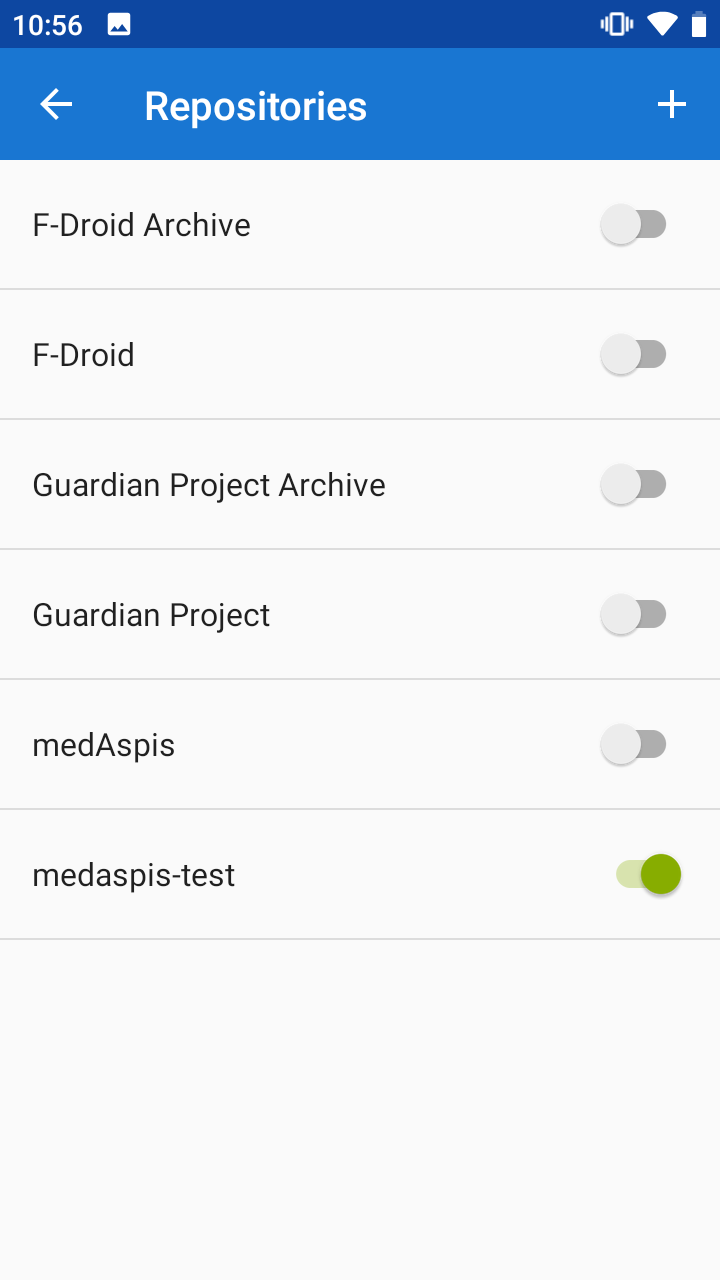
Launch F-Droid via the hand scanner’s Android interface and go to Settings (bottom right of the F-Droid app). After tapping the ‘Repositories’ button, a list of all active repositories will appear. You will definitely see a ‘medAspis’ repository; you may also see a ‘medAspis staging F-Droid Repository’. This staging repository must be enabled, whilst the ‘medAspis’ repository must be disabled.
If the staging repository has not yet been created, carry out the following steps in the handheld device’s browser:
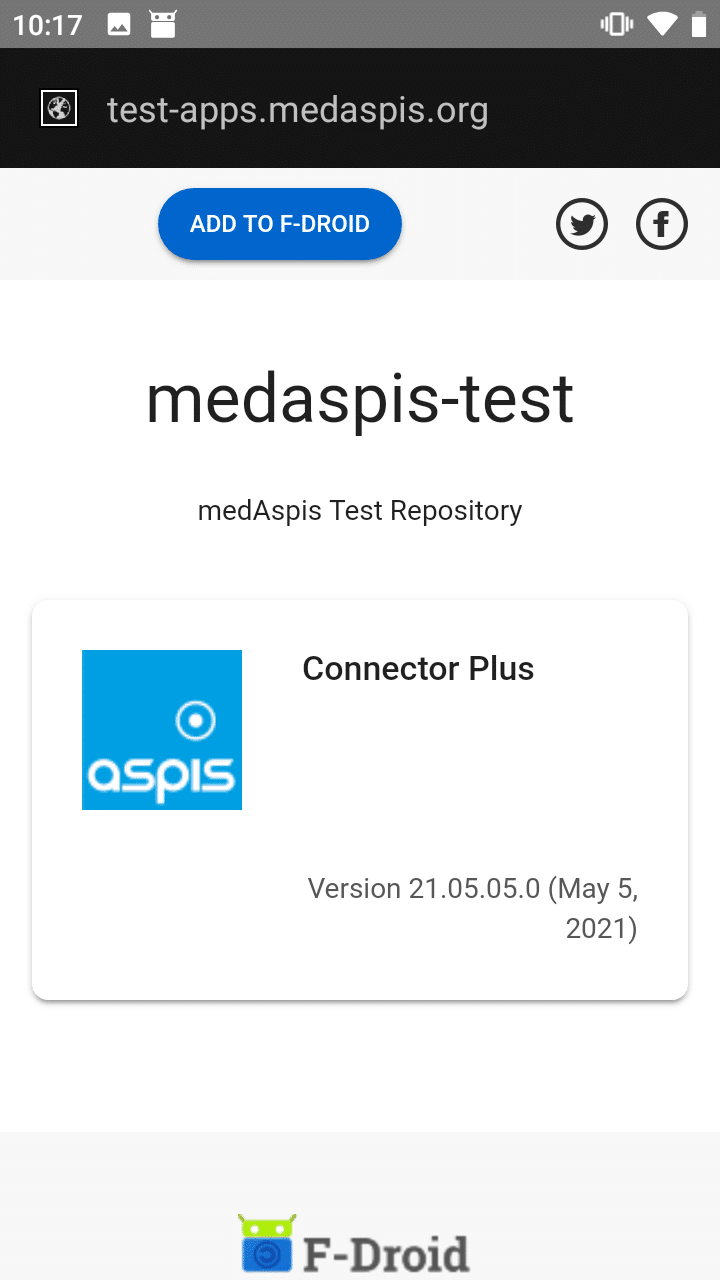
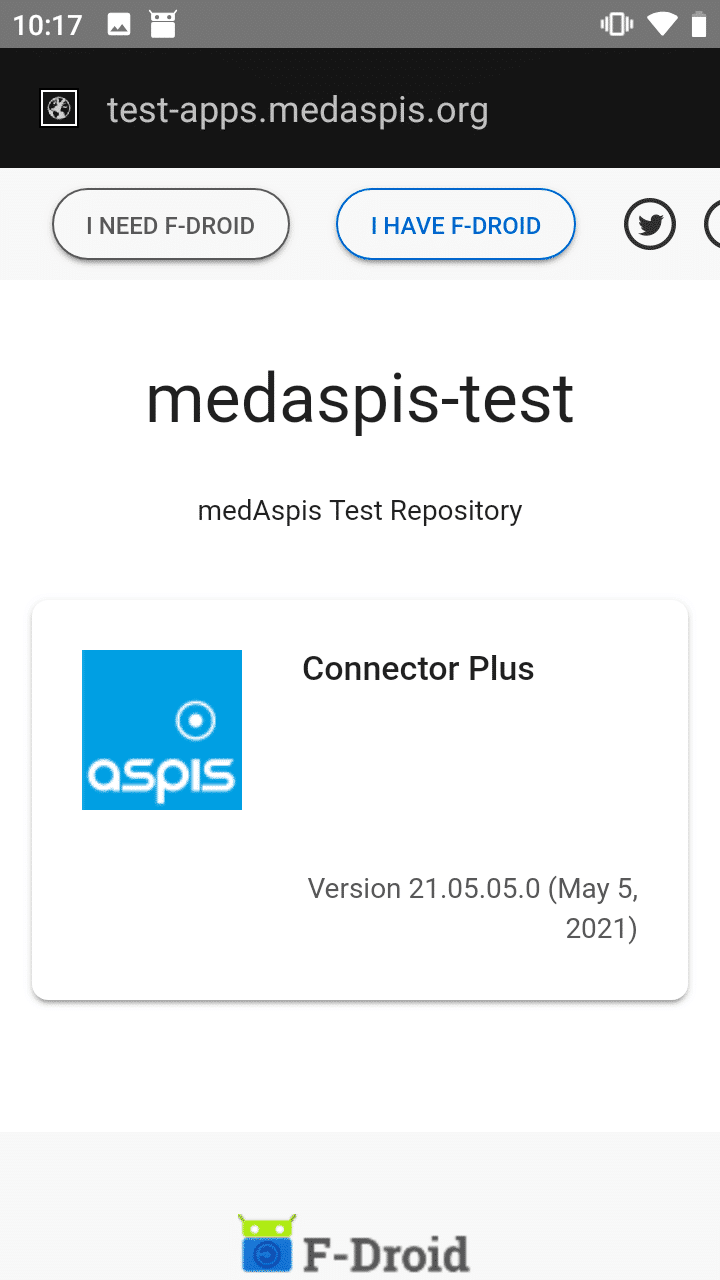
Open the Speed Scanner’s browser and enter this URL: https://test-apps.medAspis.org. An F-Droid webpage will appear. Please click on the ‘ADD TO F-DROID’ button at the top of the window. Another window will open immediately. Please now click on the ‘I HAVE F-DROID’ button. On the page that appears, please confirm the details shown by clicking the OK button. The test repository has now been created on F-Droid.
Switch back to F-Droid, go to the settings and click on “Repositories”. Now you can see all the data directories from which new applications can be loaded. To be sure that only the test application is loaded, please switch the staging repository on and the productive repository off.
Switch back to the main F-Droid interface. Click “Latest” in the menu at the bottom left. You may already see the medAspis app now. If not, please use the search button on the bottom right. Type “medAspis” in the search field. The app appears and can be clicked on.
First, please click the UNINSTALL button to delete the existing application. Don’t worry, the app will load again in the next step. Please follow the further instructions of the uninstall process. The next step is to follow the instructions for installing the new software.
The test software has now been installed, and the handheld device can be used in test mode. Please decide how you wish to test the new app. A test panel is available for a full test, but the app also works in the production environment.
You must activate the app in the respective preferred environment. If your device is still connected to the system after installing the new app, please press the logo 5 times in succession in the app settings. The device then switches to enrolment mode, in which the device can be enrolled in a new environment.
Now launch the panel in either the production or test environment. If you are using the test environment, please be aware that the packages scanned in this environment cannot subsequently be transferred to the production environment. However, the test environment is also connected to your NMVS. If you wish to avoid this, please ask your NMVO for a test environment and re-enter the login details.
Please note: It is important to follow the uninstallation and reinstallation procedure, as the production application that was originally installed must be deleted before the test application can be installed.
Please note: After testing the app, please do not forget to reload a production app so that you can continue with your work in the production environment. To do this, you must deactivate the test repository ‘medaspis-test’ and activate the production repository ‘medAspis’, following the same procedure as described above. Once again, you must delete the current test app and reload the ConnectorConnector+Connector+ app that is then offered. Please ensure that the codes scanned with the new app are available in the production environment under https://panel.medAspis.com. If this is not the case, please repeat the installation process.
Please use a larger screen to view the full support menu.
Ordering new Aggregation Codes
Please allow up to 24 hours for your order to be processed. We will then send the newly generated Aggregation Codes as a PDF to the email address provided here.
Request a Replacement Device
Is your FMD Speed Scanner no longer working? To ensure you can continue working without interruption, we will send you a replacement device as quickly as possible. At the same time, you will receive a return label for sending back your defective device.
You will receive the replacement unit regardless of whether your warranty is still valid.
Terms of service
Customers can use the medAspis repair service if an FMD Speed Scanner supplied by medAspis is damaged. During the warranty period, we provide a replacement device free of charge.
The option of a free repair during the warranty period, as well as any other warranty rights, remains unaffected.
The medAspis replacement device service applies only to handheld devices purchased under a medAspis contract, regardless of the warranty period.
Support for counterfeit alerts
Do you suspect counterfeiting? Our medAspis Alert Team will assist you with the process. We are also happy to assist you with unclear error messages or unfamiliar situations.
Describe the incident using the report form. If needed, you can upload up to three photos. We will contact you as soon as possible and support you with the next steps.
Compliance Check-up:
FMD under review
Companies in the pharmaceutical industry are validated and meet strict quality requirements. Nevertheless, there is still a significant compliance risk with FMD.
Suspected falsification cases may not be handled and documented in a GxP-compliant manner.
With our free, anonymous and non-binding Compliance Check-up, we analyse and assess your company’s critical FMD error messages.
Review compliance
Based on your existing FMD audit trails, we analyse among other things:
How many falsification alerts were triggered, which types, and over what period?
What compliance risks exist?
How can your internal workflows be optimised?
The analysis is performed entirely within your data system. No data is transmitted to medAspis. All evaluations remain anonymous.
Request Compliance Check-up
Error messages
Download the error messages directly to your computer in your local language.
Can’t find your language? As soon as you become a customer, we’ll of course provide the error messages in your local language. Promise.
Systematic Validation
medAspis stands for proven quality and traceable processes. Lean FMD provides the necessary framework for this.
Validated and Documented
Lean FMD is validated in accordance with EU-GMP Annex 15. medAspis operates a Quality Management System in accordance with ISO 9001 and supports you with validation and the required documentation.
Validation toolkit
With the Validation Toolkit, you receive the documentation for the validation of Lean FMD. This enables you to carry out the necessary validation steps in a structured and traceable manner.
Download an excerpt from the Validation Toolkit to get a first impression of the structure and process of validation.
The complete toolkit contains all the necessary documents for validating Lean FMD.