


The medAspis Lean FMD System can not only process individual packs, but also group packs together and process them as a whole. Each group is saved under a unique name, which allows it to be retrieved and processed further in the Lean FMD System at any time.
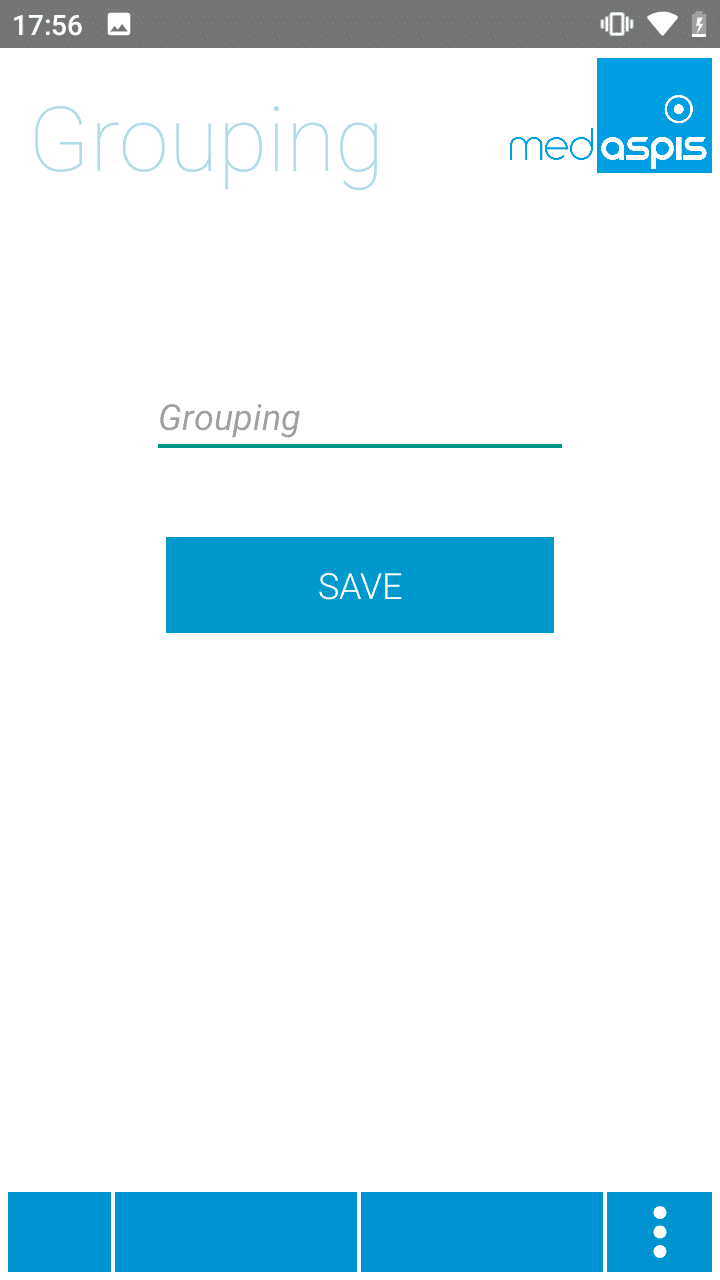
To work with groupings, the function must first be enabled in the medAspis Speed Scanner’s app settings. The medAspis Speed Scanner will then prompt you to enter the name of a grouping. This can be entered using the keyboard, or the laser scanner can read a machine-readable code (barcode, QR code or 2D matrix code). Optionally, the maximum size of a grouping can be specified. This ‘Max’ function must be enabled by medAspis. Please contact Support.
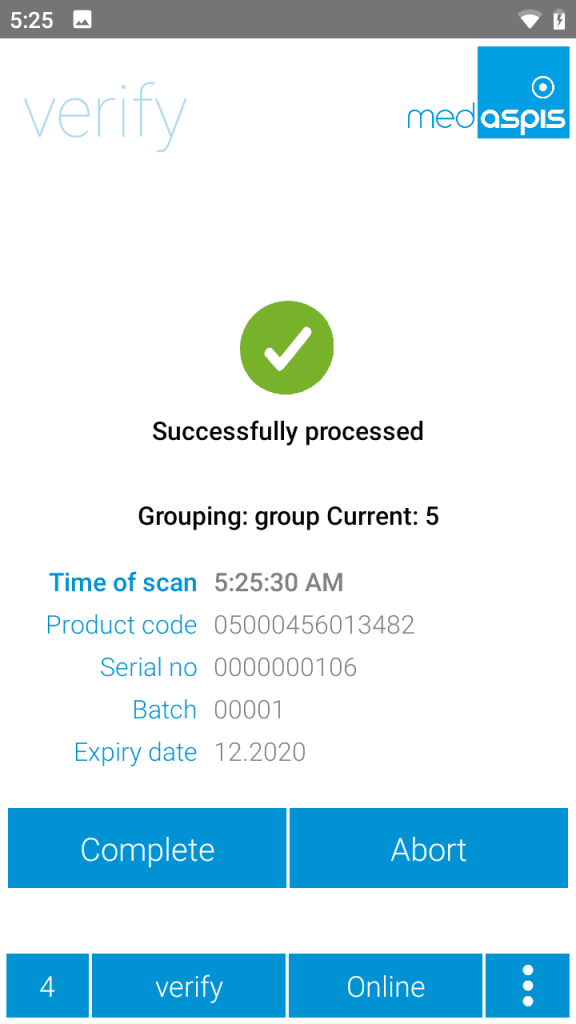
Additional information is displayed on the standard screen of the medAspis Speed Scanner. A line below the icon shows the name of the group and the number of packs already scanned into that group. If required as an option, the maximum size of the group is also shown.
In addition, two buttons appear to either complete the grouping currently in progress (‘Complete’) or cancel it (‘Abort’). Both actions must be confirmed by clicking a ‘Confirm’ button. The grouping will then be visible in the Control Panel under the ‘Grouping’ menu item, or it will be discarded.All FMD functionality is retained. FMD error messages are always treated as having the highest priority.
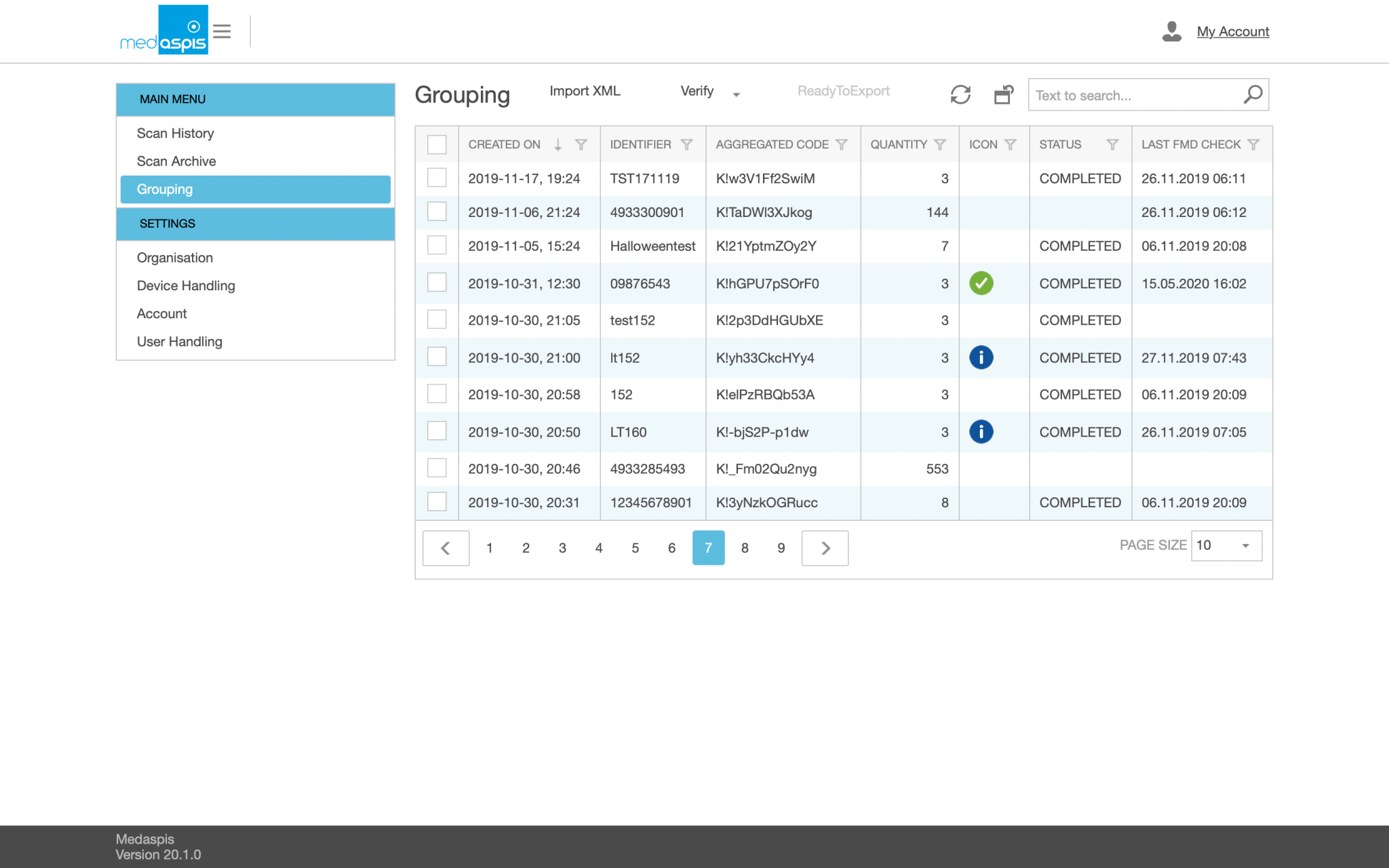
If the Batch Control function is enabled, packs with a different batch or product number will not be included in the grouping. Instead, the error message “Incorrect batch or PC detected. Pack is being ignored” will appear on the scanner display alongside a blue information icon; the scanner will stop operating and must be reactivated by pressing “Confirm”.
If the maximum group size has been specified, the scanner will stop automatically as soon as the specified group size has been reached. The group can then be closed manually.
Groups have their own menu item in the Control Panel. All groups ever created are listed there; there is no archive function for groups.
Various parameters are displayed for each saved grouping. Values shown in the standard view are marked with an ‘x’:
Groups can not only be created using the medAspis Speed Scanner, but can also be imported via various options in the Control Panel
Mit einem Klick auf der Liste der Gruppierungen werden individuelle Informationen einzelner Gruppierungen angezeigt und weitere Operationen können für die Gruppierung angewendet werden.
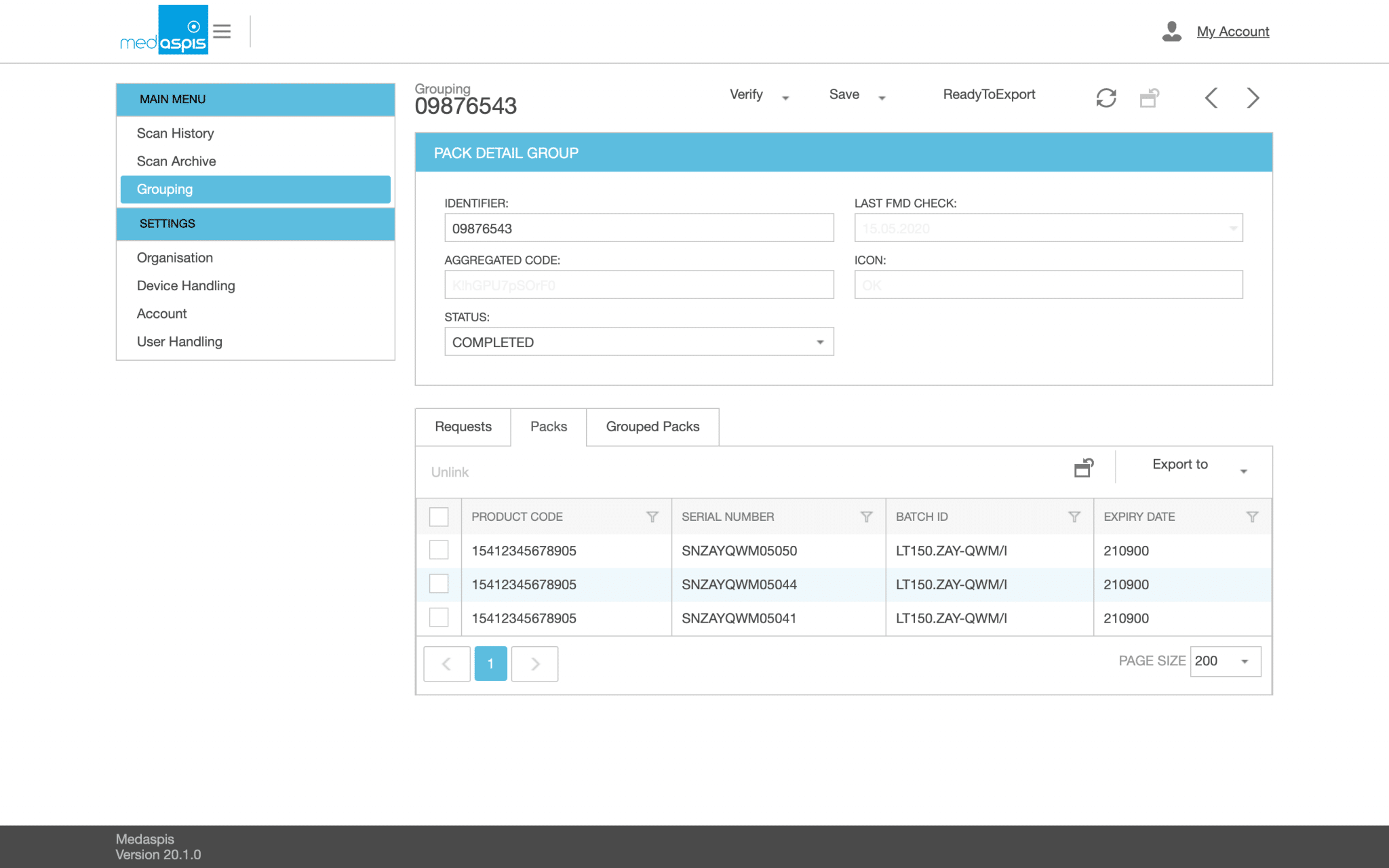
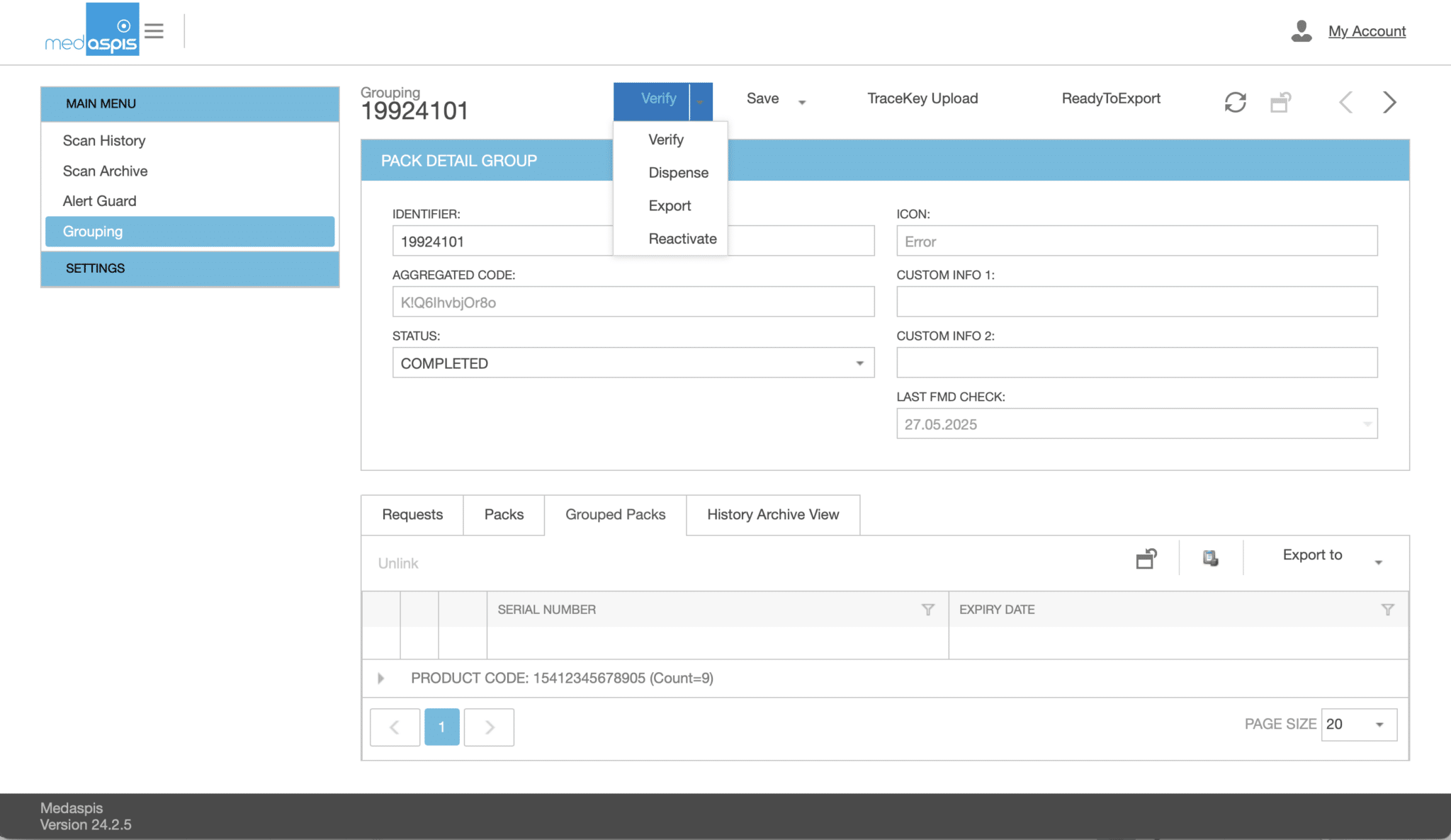
This view provides general information about the grouping:
Groups can have different statuses. The status describes the state of the group. For example: Packages can still be added to an open group, but a group with the status ‘Completed’ or higher cannot be changed any further.
The packs within the group are managed via four tabs, which contain further information about the group.
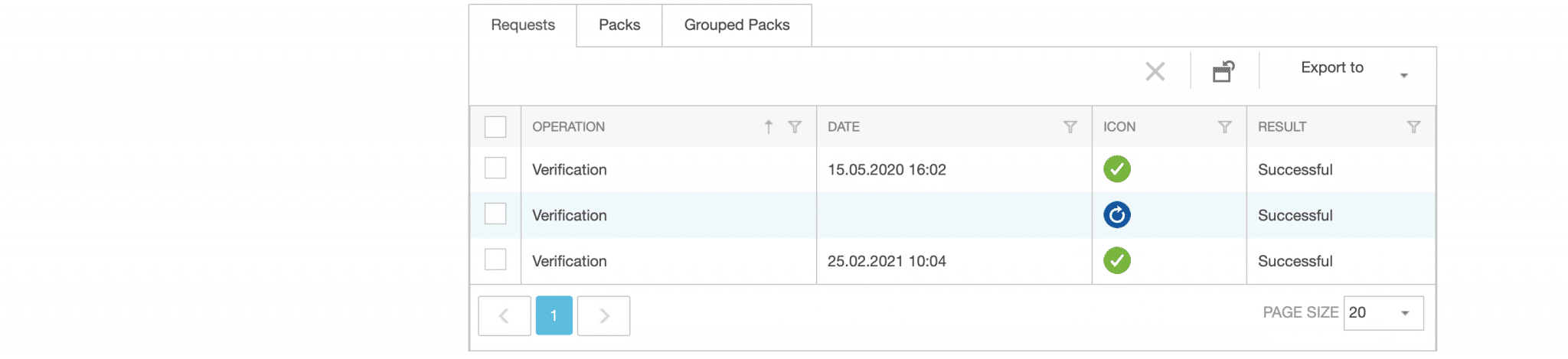
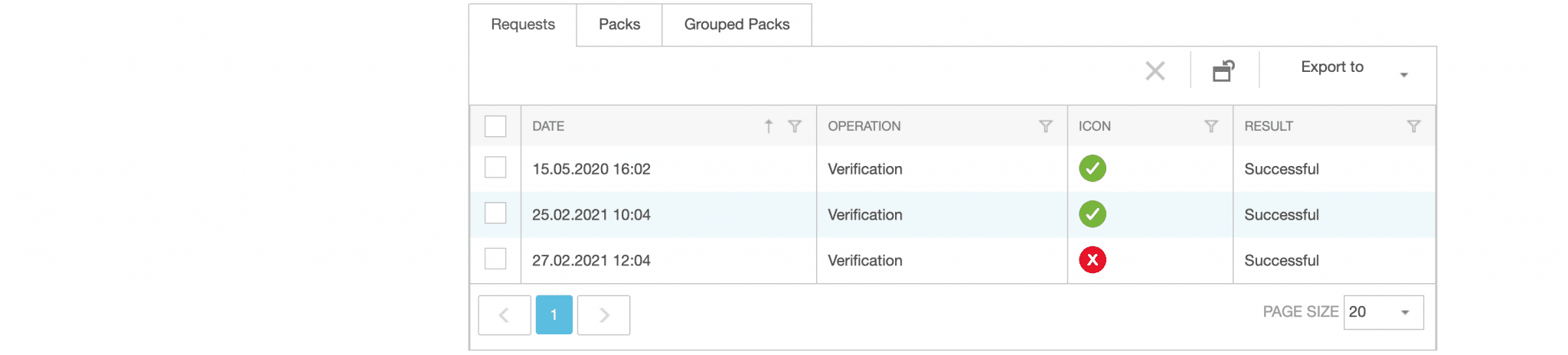
‘Requests’ tab: This displays all FMD bulk operations carried out to date for the entire grouping. The following parameters are displayed:
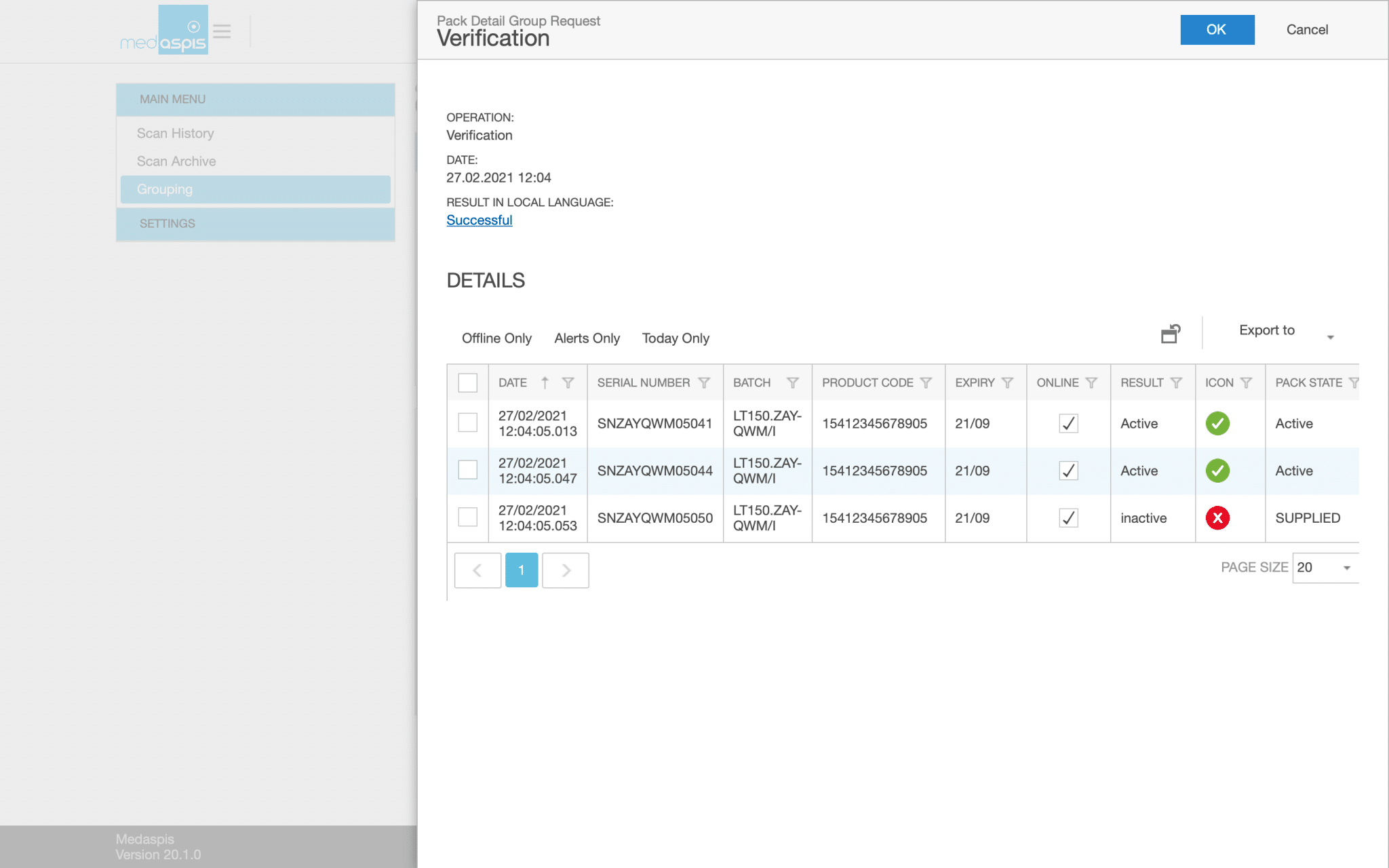
Clicking on one of the FMD operations opens a new window. An extract from the scan history is displayed here. All operations associated with the selected FMD bulk request are visible. Suppose a group consists of 5 packs and has been verified once and deactivated once. A total of 2 × 5 = 10 operations are then carried out: 5 for verification and 5 for deactivation.
Clicking on ‘Deactivation’ displays only the 5 deactivation operations; clicking on the ‘Verification’ row displays only the 5 verification operations. This view can be used to generate reports.
‘Packs’ tab: This tab contains a list of all packs included. It displays the scan date and the scanned data for the packs, namely the product code, serial number, expiry date and batch number. Results from FMD operations are not displayed.
‘Grouped Packs’ tab: A list of all packs contained, sorted by various product codes and batches. If a group is not sorted by product type, this can be seen here on anen Blick.
‘History View’ tab: This overview displays all entries in the scan history for the packs in the grouping. This list may be longer than the list in the ‘Packs’ tab, as all associated scan data (including multiple verifications, duplicate deactivations, etc.) for the packs is displayed here.
Falls die gescannten Packungen inzwischen in das Scan Archiv übertragen wurden, wird automatisch ein Bezug zum Archiv hergestellt. Falls Packungen teilweise in der Scan History, teilweise im Archiv sind, werden beide Zuordnungen angezeigt.
FMD operations can be carried out simultaneously for all packages within a grouping. These specific FMD operations are known as bulk operations. These bulk operations are provided by the NMVS to varying degrees. The medAspis Lean FMD System can only ever offer those FMD bulk operations that are made available by the respective NMVS.
The tick boxes in the first column of the grouping overview are used to select the groupings for which a bulk FMD operation is to be carried out. The FMD operations in the drop-down menu at the top of the grouping page are used to execute the desired FMD operation. The available FMD bulk operations are VERIFY, DISPENSE, EXPORT and REACTIVATE. Further FMD bulk operations can be enabled on request by contacting Support.
A grouping is applied in what is known as ‘bulk mode’. In this process, the entire contents of the grouping are transferred to the NMVS in a single step. Processing takes some time; the result is not made available immediately, but is held on the NMVS ready for retrieval.
The medAspis Lean FMD System checks, at increasingly longer intervals, whether the NMVS has already completed processing the group. As long as processing on the NMVS side has not been completed, a blue icon with a rotated arrow is displayed.
You can check whether the NMVS has finished processing the data by clicking the ‘Reload’ button. As soon as the NMVS has finished processing the data and it is ready to be retrieved, this icon will be replaced by the ‘Result’ icon. The result of the bulk query will then appear in the ‘RESULT’ column, along with the corresponding green or red icon.
If the FMD bulk operation returns different results for the packs in the group, the overall result will always show the most negative result. Example: If, in a group of 10 packs, 7 results are marked with a green tick, 2 with a yellow warning symbol and one with a red error symbol, the red error symbol will be displayed in the group view.
Clicking on the relevant row displays all the results of the bulk operation at pack level. The sub-window that opens shows the packs included in the grouping, along with their respective FMD results. The view and functionality are the same as in the Scan History.
The blueprint provider Arvato supplies the technology for many NMVSs (e.g. France, Poland, Spain, Italy, etc.) and handles the processing of FMD bulk operations in certain respects differently from the other two providers, Solidsoft and securPharm:
Exception to the quantity limit: Arvato does not allow more than 10,000 packs per bulk request
Exception homogeneous bulk consignments: Arvato only permits wholesalers to process homogeneous bulk consignments. Within these consignments, the product codes, batch numbers and expiry dates of all packs must be the same. Only the serial number may vary. Enquiries involving mixed bulk consignments will be returned as invalid, without any results being provided for individual packs.
Exception regarding the return of individual package results: As a general rule, bulk operations return an individual result for each individual package. Arvato has one exception to this rule: if, in a Verify bulk operation, all packages contained therein have a positive result, an individual result is not returned for each package, but only for the bulk as a whole. There is only a single result representing all the packages contained therein.
Exception: no inter-market transactions: Arvato’s FMD bulk operation does not allow the processing of packages registered in another country.
To offset the disadvantages of Arvato’s processing of FMD-Buk operations, medAspis has introduced the optional Smart Mixed Bulk operation. This operation analyses a grouping before it is sent to an NMVS that uses Arvato. If it is determined that the packs are not of the same type and batch, the original grouping is split into homogeneous sub-segments, which are then passed to the Arvato algorithm. The respective sub-segments are processed individually and later reassembled into the grouping that was originally intended for processing. The Mixed Bulk operation runs autonomously in the background; there is no need to call a separate operation.
Unlike in the original Arvato bulk operation, packages can be processed even if they have different FMD statuses at the time of scanning (e.g. one package is active, whilst another has already been deactivated). However, only operations permitted by the NMVS system are carried out (e.g. reactivation within 10 days).
The mixed-bulk operation also allows for inter-market transactions.
Our support team is always there for you.
Please use a larger screen to view the full support menu.
Please allow up to 24 hours for your order to be processed. We will then send the newly generated Aggregation Codes as a PDF to the email address provided here.
Is your FMD Speed Scanner no longer working? To ensure you can continue working without interruption, we will send you a replacement device as quickly as possible. At the same time, you will receive a return label for sending back your defective device.
You will receive the replacement unit regardless of whether your warranty is still valid.
Do you suspect counterfeiting? Our medAspis Alert Team will assist you with the process. We are also happy to assist you with unclear error messages or unfamiliar situations.
Describe the incident using the report form. If needed, you can upload up to three photos. We will contact you as soon as possible and support you with the next steps.
Companies in the pharmaceutical industry are validated and meet strict quality requirements. Nevertheless, there is still a significant compliance risk with FMD.
Suspected falsification cases may not be handled and documented in a GxP-compliant manner.
With our free, anonymous and non-binding Compliance Check-up, we analyse and assess your company’s critical FMD error messages.
Based on your existing FMD audit trails, we analyse among other things:
The analysis is performed entirely within your data system. No data is transmitted to medAspis. All evaluations remain anonymous.
Download the error messages directly to your computer in your local language.
Can’t find your language? As soon as you become a customer, we’ll of course provide the error messages in your local language. Promise.
medAspis stands for proven quality and traceable processes. Lean FMD provides the necessary framework for this.
Lean FMD is validated in accordance with EU-GMP Annex 15. medAspis operates a Quality Management System in accordance with ISO 9001 and supports you with validation and the required documentation.
With the Validation Toolkit, you receive the documentation for the validation of Lean FMD. This enables you to carry out the necessary validation steps in a structured and traceable manner.

Download an excerpt from the Validation Toolkit to get a first impression of the structure and process of validation.
The complete toolkit contains all the necessary documents for validating Lean FMD.