


All FMD operations specified by the NMVO can be carried out in the medAspis system. Some of these operations are restricted for use in pharmacies. However, they are still displayed in the FMD menu. If an unauthorised operation is attempted, an error message will be displayed.
FMD operations can be used to check (“verify”) the status of a medicine pack, or to change the FMD status (“dispense”). The deactivation functions ‘exported’, ‘stolen’, ‘sample’, ‘free sample’, ‘locked’ and ‘destroyed’ also change the status of the pack and are used in specific situations. ‘dispense’ is explained below; the other FMD operations work in a similar way. Most FMD operations can be reversed using ‘reactivate’ under certain conditions.
To check the status of a pack, the FMD mode of the medAspis Speed Scanner is set to ‘verify’. The 2D matrix code on a pack is scanned. A ‘verify’ command is sent to the relevant NMVS.
Medicine packs can be verified as often as required. A separate line appears in the scan history for each ‘Verify’ command.
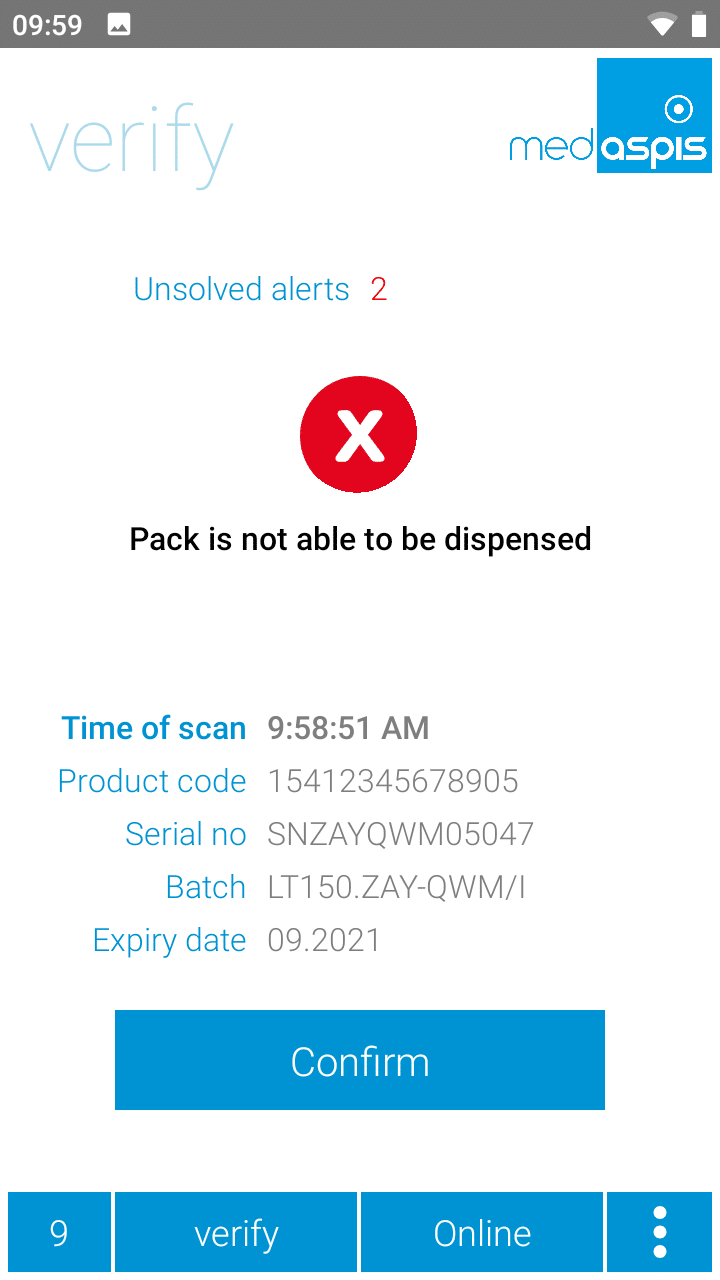
The result of a ‘Verify’ check may be negative if the medicine pack has already been deactivated or if there is some other error. The nature of the error is shown on the screen.
In this case, the scanner is stopped; you cannot continue scanning but must deal with the error. This process is recorded by pressing the ‘Confirm’ button on the medAspis Speed Scanner’s display. This is also noted in the scan history. In certain cases, confirming the error may disrupt the workflow and can be disabled in the settings.
In addition, the affected packs are saved in the medAspis Speed Scanner. The packs can be checked in the Unsolved Alerts list.
The FMD mode of the medAspis Speed Scanner is set to ‘dispense’. The 2D matrix code on a pack is scanned. A deactivation command is sent to the relevant NMVS.
The result can be positive or negative, just as with ‘verify’ and all other FMD operations. The ‘dispense’ command sets the status of the pack from ‘active’ to ‘inactive’. A pack that is set to ‘inactive’ cannot be dispensed again.
A separate line appears in the Scan History for each deactivation command.
Deactivating a pack that is already inactive will result in an NMVS error. This error may occur if a pack is deactivated several times due to carelessness.
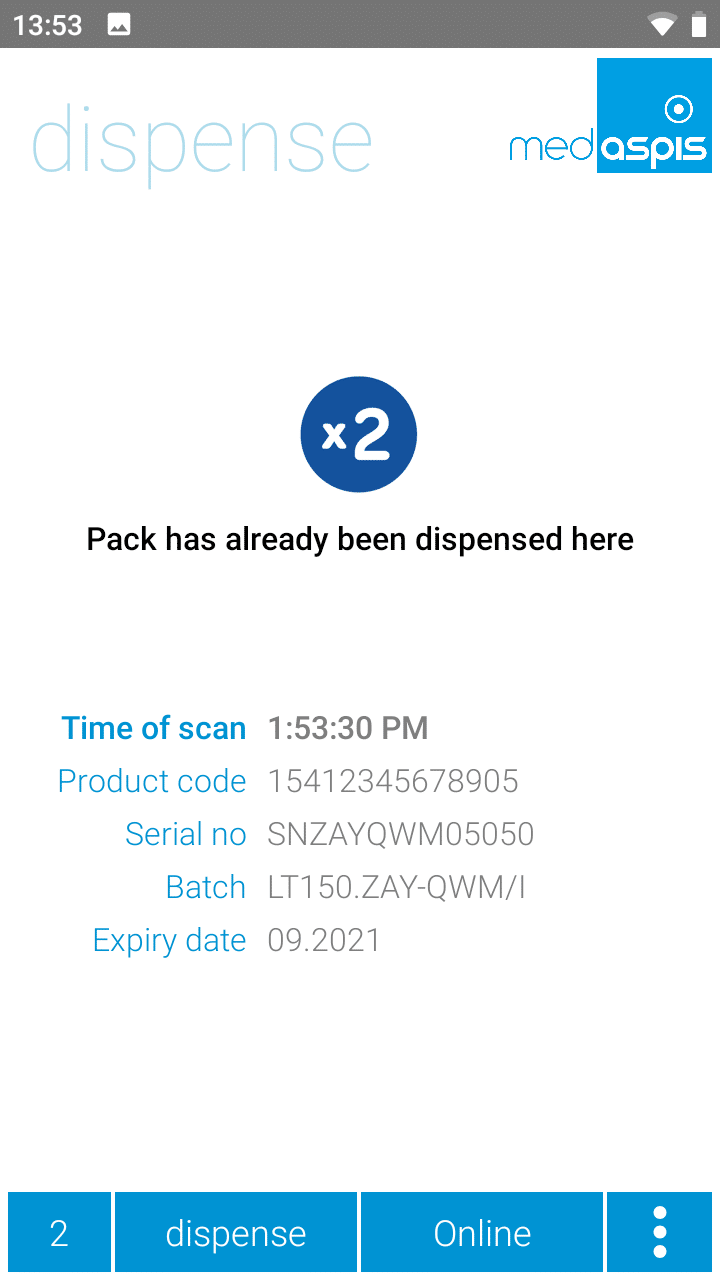
The medAspis system can recognise a deactivation as a duplicate and does not send it to the NMVS again. Instead, the result of the previous deactivation is displayed once more, but with the ‘Double Dispense’ symbol. The same entry is also displayed in the Scan History, again with the ‘Double Dispense’ symbol.
For a duplicate to be identified, the same pack must have been deactivated within the last 10 minutes using the same FMD command. When Alert Guard is enabled, this time period is extended to 2 hours.
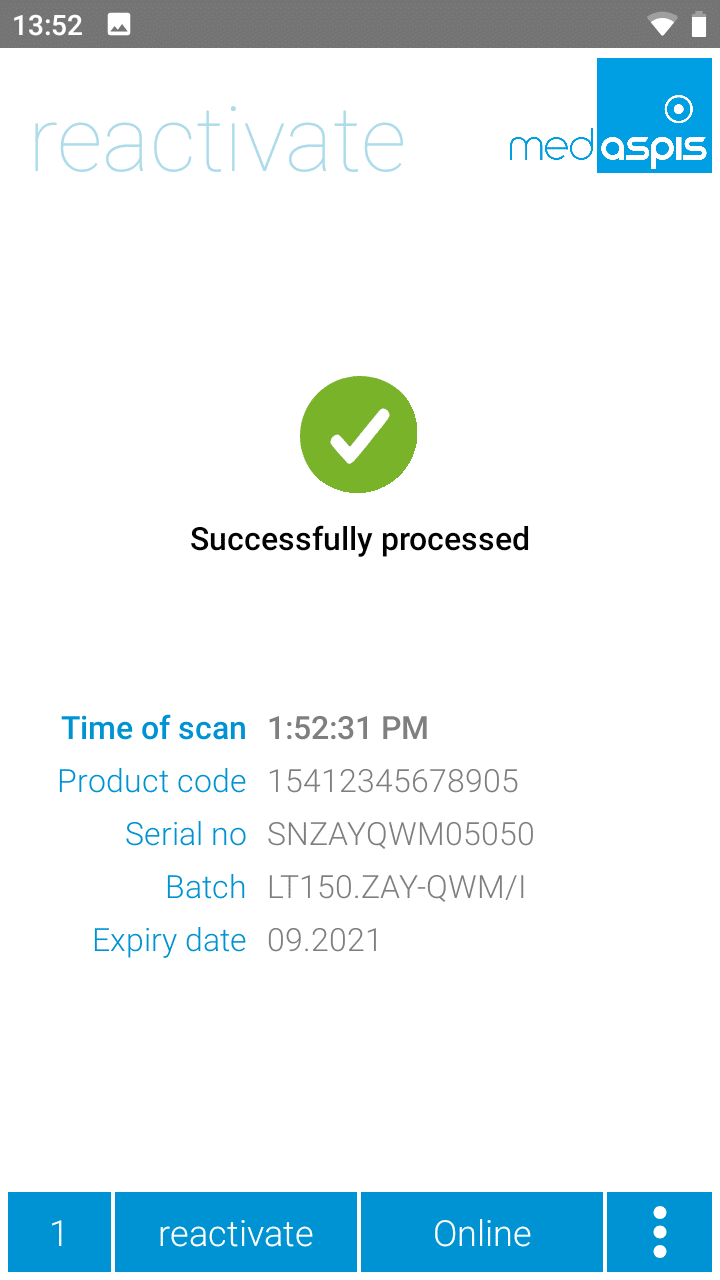
Reactivation resets a pack’s status from ‘inactive’ to ‘active’. To carry out this function, the FMD menu on the medAspis Speed Scanner is set to ‘reactivate’. The 2D matrix code of a pack is scanned, and a reactivation command is sent to the relevant NMVS. It is not necessary to specify the original FMD operation that is now to be reset. This attribute, which is required by the NMVS, is automatically appended to the reactivation command by the medAspis system.
The reactivation function is subject to certain restrictions. For example, a pack can only be reactivated if you (using your own NMVS customer account) have deactivated it yourself within the last 10 days. Excluded from this are the FMD operations ‘marked as stolen’ and ‘marked as destroyed’. These cannot be reactivated under any circumstances.
The reactivation is shown as a separate line in the Scan History.
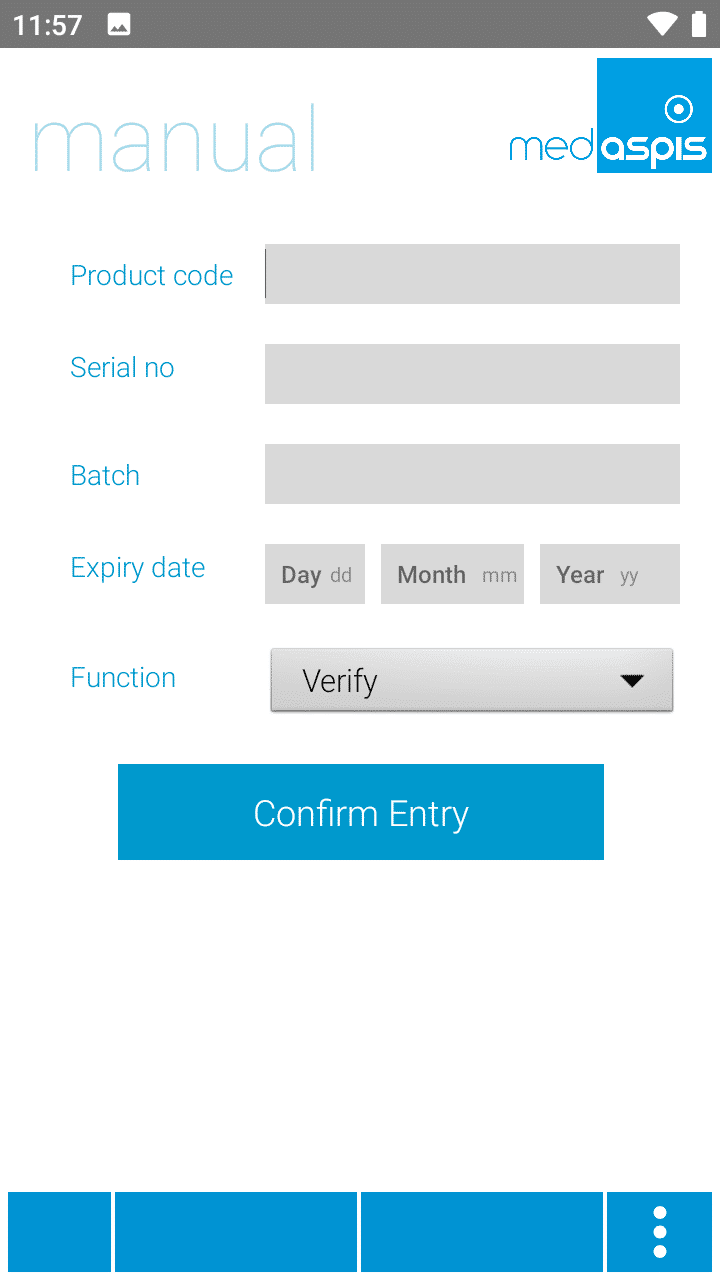
If a 2D matrix code cannot be read by the scanner, the data can be entered manually. To do this, the required fields must be completed and the desired FMD operation specified. If an expiry date consists only of the year and month, the day field in the display is either left blank or entered as 0 (zero).
The NMVS response reappears on the main screen of the medAspis Speed Scanner.
In the Scan History, manual entries are not particularly highlighted. The FMD command resulting from manual input is displayed in exactly the same way as if it had been generated by the scanner.
Our support team is always there for you.
Please use a larger screen to view the full support menu.
Please allow up to 24 hours for your order to be processed. We will then send the newly generated Aggregation Codes as a PDF to the email address provided here.
Is your FMD Speed Scanner no longer working? To ensure you can continue working without interruption, we will send you a replacement device as quickly as possible. At the same time, you will receive a return label for sending back your defective device.
You will receive the replacement unit regardless of whether your warranty is still valid.
Do you suspect counterfeiting? Our medAspis Alert Team will assist you with the process. We are also happy to assist you with unclear error messages or unfamiliar situations.
Describe the incident using the report form. If needed, you can upload up to three photos. We will contact you as soon as possible and support you with the next steps.
Companies in the pharmaceutical industry are validated and meet strict quality requirements. Nevertheless, there is still a significant compliance risk with FMD.
Suspected falsification cases may not be handled and documented in a GxP-compliant manner.
With our free, anonymous and non-binding Compliance Check-up, we analyse and assess your company’s critical FMD error messages.
Based on your existing FMD audit trails, we analyse among other things:
The analysis is performed entirely within your data system. No data is transmitted to medAspis. All evaluations remain anonymous.
Download the error messages directly to your computer in your local language.
Can’t find your language? As soon as you become a customer, we’ll of course provide the error messages in your local language. Promise.
medAspis stands for proven quality and traceable processes. Lean FMD provides the necessary framework for this.
Lean FMD is validated in accordance with EU-GMP Annex 15. medAspis operates a Quality Management System in accordance with ISO 9001 and supports you with validation and the required documentation.
With the Validation Toolkit, you receive the documentation for the validation of Lean FMD. This enables you to carry out the necessary validation steps in a structured and traceable manner.

Download an excerpt from the Validation Toolkit to get a first impression of the structure and process of validation.
The complete toolkit contains all the necessary documents for validating Lean FMD.