The Speed Scanner
The Control Panel
System maintenance
Typical applications
Appendix
Register a medAspis Speed Scanner to your own customer account
To register a medAspis Speed Scanner on the system, you need to carry out several steps in the Control Panel and within the medAspis Speed Scanner software.
Create a profile for a medAspis Speed Scanner
Each medAspis Speed Scanner must be registered once against a customer account. To do this, select an existing scanner profile or set up a new one in the Control Panel under the ‘Device Handling’ menu item.
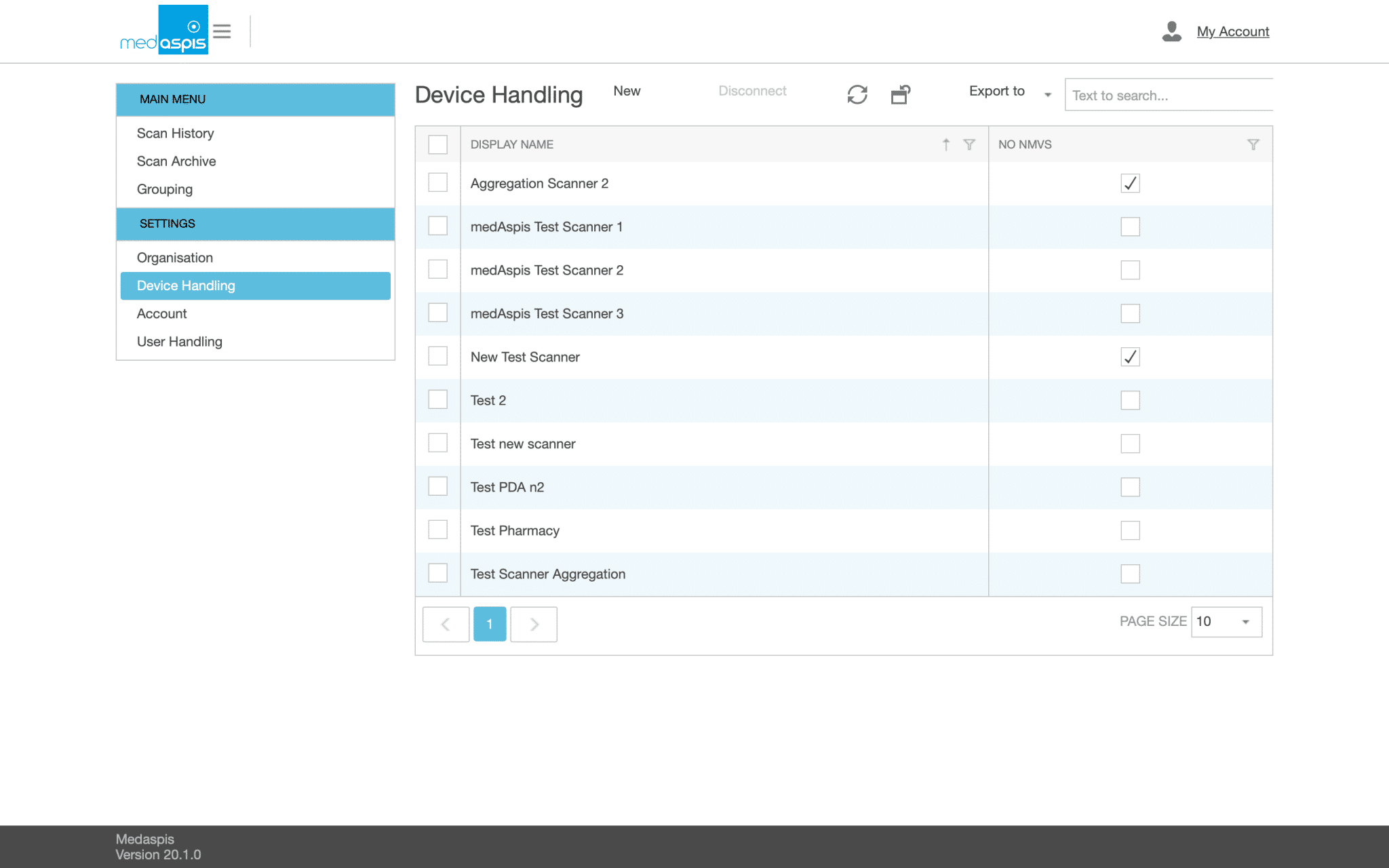
When you open the window, you will see all the scanner profiles created so far. The scanner profiles are displayed with their names and, optionally, additional parameters. Under no circumstances should more than one medAspis Speed Scanner be registered under the same scanner profile.
Once a scanner profile has been created, it cannot be deleted for reasons of data integrity. However, not every scanner profile displayed needs to be linked to a medAspis Speed Scanner. If a medAspis Speed Scanner is faulty and needs to be replaced, the new medAspis Speed Scanner replacing the old one can be operated using the same scanner profile. If a new device is purchased in addition to existing devices, a new scanner profile must be created.
Create a new scanner profile
You can create a new scanner profile by clicking the ‘New’ button.
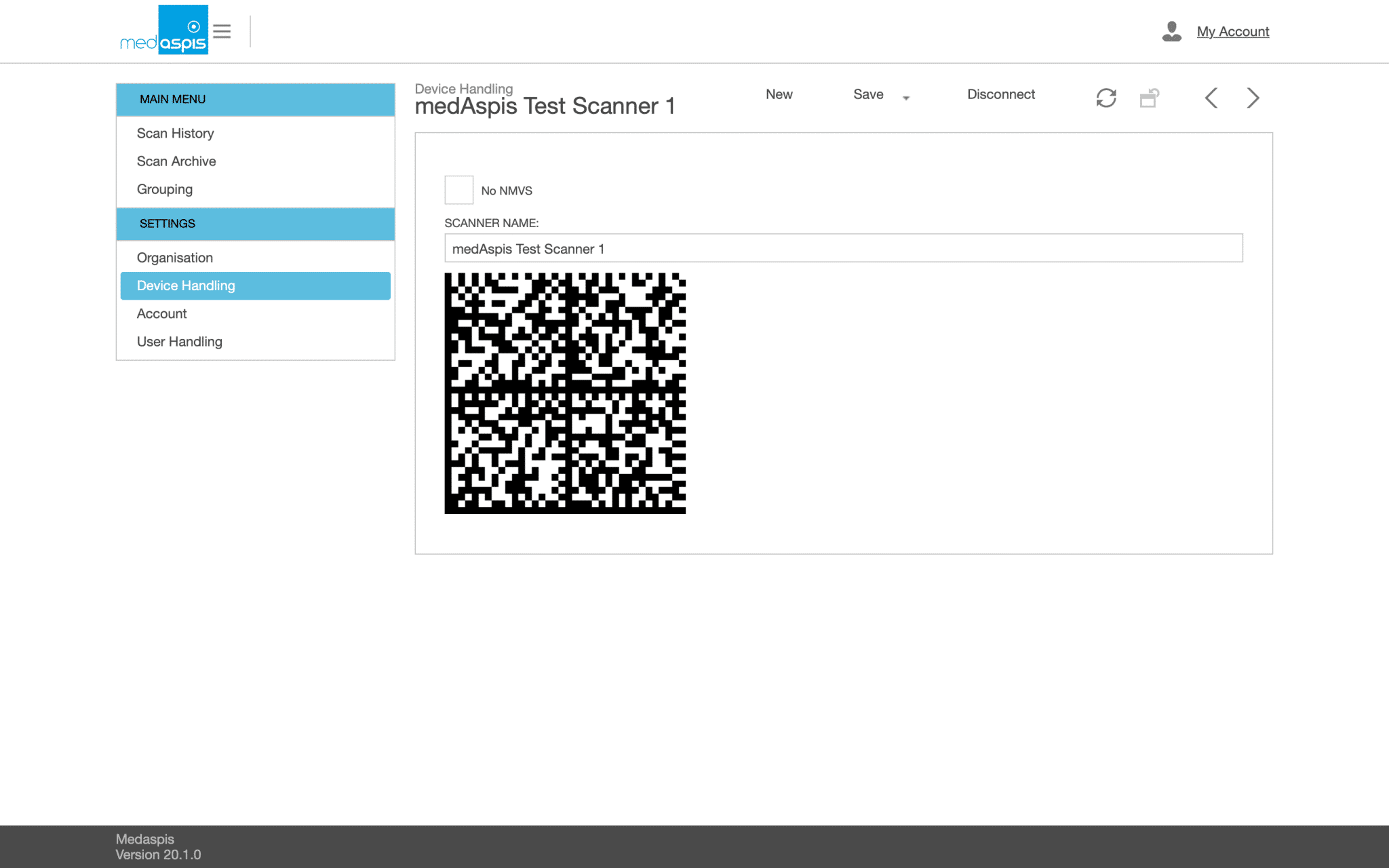
Three fields must be completed for the new scanner profile:
NAME: The name of the scanner profile. This name will later be visible in the settings menu of the connected scanner, and the scans will appear under this scanner name in the scan history.
No NMVS: If this box is ticked, the scanned data will not be transmitted to the NMVS. With this option selected, 2D matrix codes are captured in the Lean FMD system but are not forwarded to the NMVS.
No Group ConfirmationProcessing: Normally, groups are finalised once the scanning process via the Speed Scanner has been completed; no further packs can then be added to such a group. Activating this function removes this restriction. Groups can be expanded at any time.
Click the ‘Save’ button to complete the process. A large enrolment code will appear on the screen. This must be scanned by the medAspis Speed Scanner to be connected during the enrolment process, in order to link it to your own system via the scanner profile.
Making changes to a scanner profile
One of the existing scanner profiles is selected. A large enrolment code appears on the screen alongside the saved attributes. All saved attributes can be amended. To apply the changes, you must first press the SAVE button. However, these attributes will only be transferred to the medAspis Speed Scanner the next time you log in.
When the data is saved, the main enrolment code also changes. To transfer the new attributes to a medAspis Speed Scanner, the Speed Scanner in question must be re-registered with the customer account. The changed parameters will only take effect on the Speed Scanner once it has been re-registered.
Connecting a medAspis Speed Scanner to the scanner profile
To register a medAspis Speed Scanner to a customer account, use the scanner profiles under the ‘device handling’ menu item. To register a medAspis Speed Scanner, please first open a scanner profile or create a new one.
If the medAspis Speed Scanner is not in registration mode, please go to the app settings (menu at the bottom right of the medAspis Speed Scanner display) and tap the medAspis logo five times. The medAspis Connector+ app will then immediately launch the mode for registering a new scanner profile.
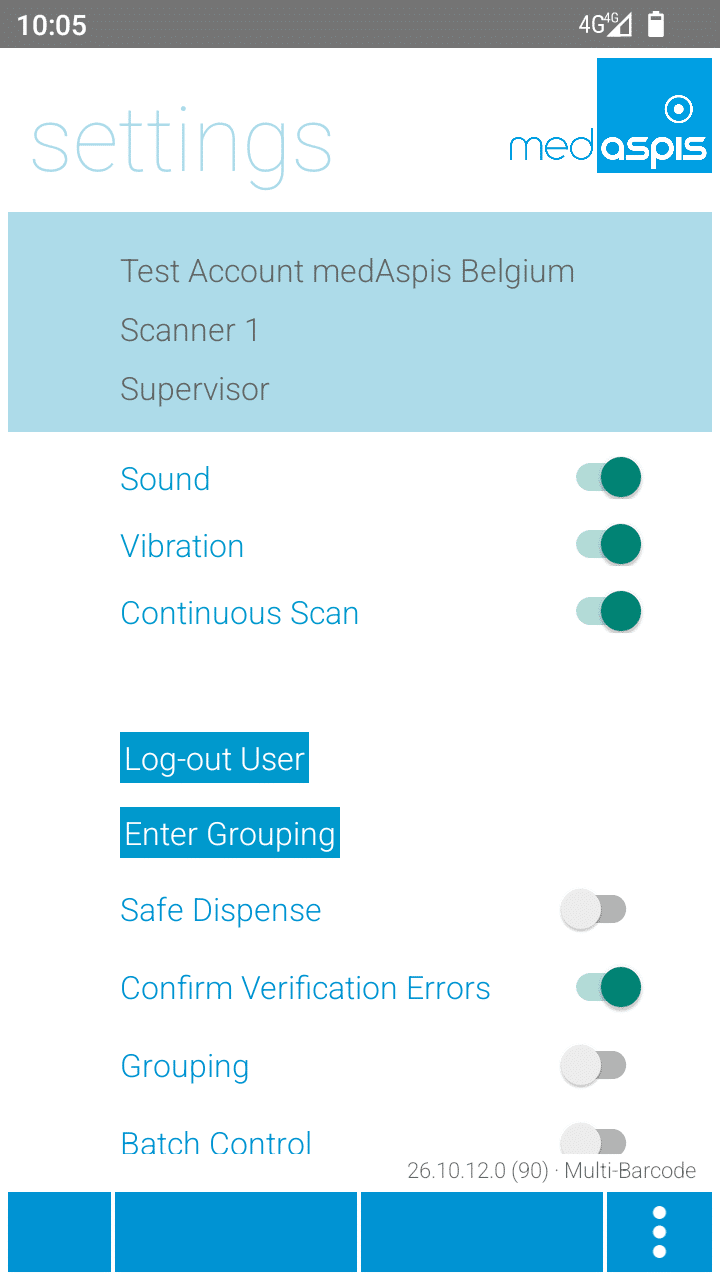
PLEASE NOTE: Using this method, the medAspis Speed Scanner will be disconnected from its existing connection to the Lean FMD system and will no longer be able to be used in its previous operational environment.
The enrolment code is now captured using the medAspis Speed Scanner from the screen displaying the required scanner profile. The enrolment code can be captured using a laser scanner. In this case, simply scan the enrolment code with the medAspis Speed Scanner.
If the scan does not work (e.g. on highly reflective screens), the built-in camera can be used as an alternative. In some cases, the pistol grip may need to be released to do this. You should then press the camera open button. Use the camera image that appears to capture the enrolment code from the screen.
As soon as the enrolment code has been recognised (by a scanner or camera), a connection is established between the medAspis Speed Scanner and the scanner profile. Following a second confirmation screen, a ‘Congratulations’ screen appears and the medAspis Speed Scanner is connected to your medAspis Lean FMD system.