

This system is only used in Germany.
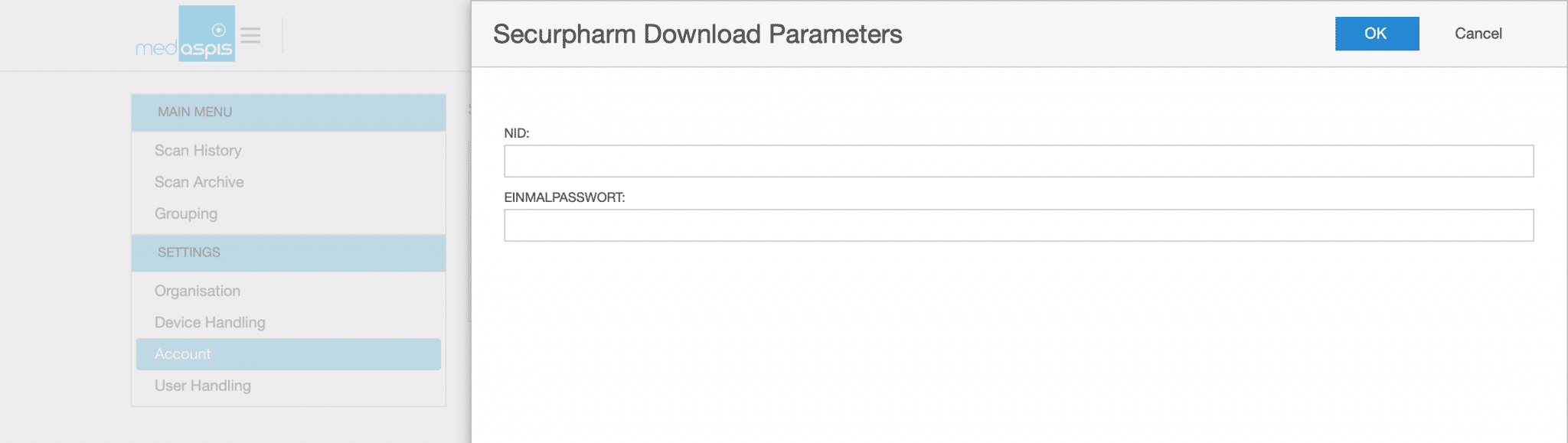
First, clicking the “Download Certificate” button opens a new window in which the securPharm certificate can be downloaded. To download the certificate, the customer has received a so-called company number (N-ID, format APOxxxxxxxx) and a password from the NMVO. These two values are entered into the fields provided and confirmed by clicking “OK” at the top of the window.
The window closes again and the certificate, which has now been downloaded from the NMVS, is displayed. You must now save the process in the securPharm main window by clicking the ‘Save’ button at the top of the window.
If you have already downloaded your certificate from NGDA yourself, you will have a file with your company number as “Name and. p12” as suffix (APOxxxx.p12).
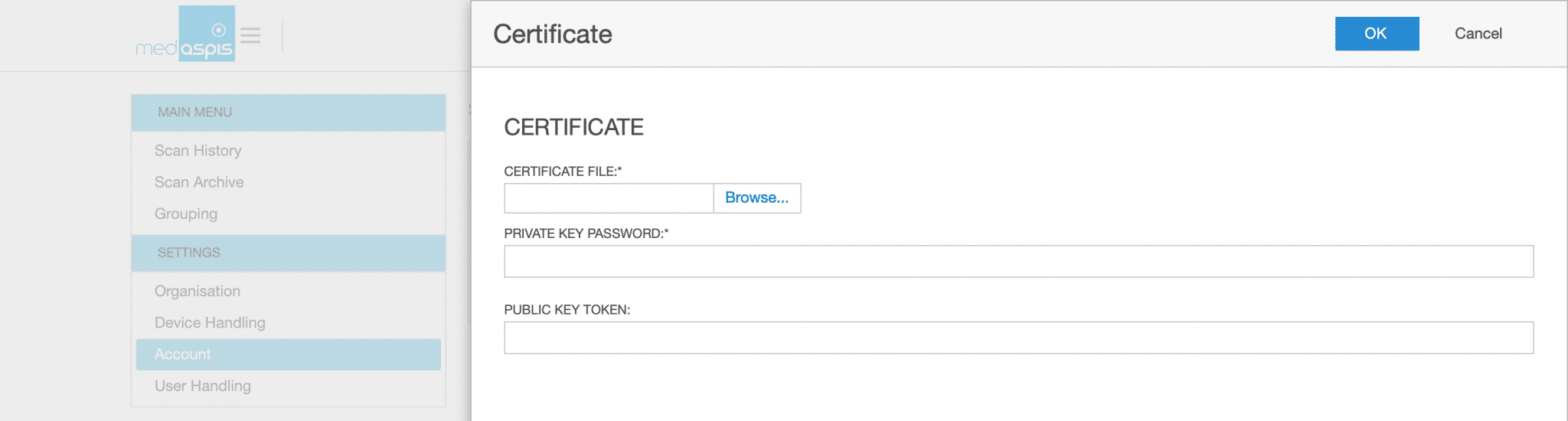
Please start by clicking on the green plus sign next to the ‘Certificate’ input field. A new window will open:
In this window the certificate can be uploaded, the corresponding password must be entered in the field “PRIVATE KEY PASSWORD”, the “PUBLIC KEY TOKEN” must remain empty.
The process is completed, the system is connected to securPharm.
Access certificates must be renewed from time to time. You can request the renewal of your certificate via the NGDA portal. You will then receive a letter from the NGDA containing a TAN, which you can then use in your medAspis Control Panel. You will find the relevant field in the Control Panel menu under the ‘securPharm Access’ tab.
Clicking on ‘Download Certificate’ will open a window in which you will be asked for your NID (establishment number, beginning with APO) and a one-off password. In the latter field, enter the password you received from the NGDA and click OK. The certificate will be imported automatically.
“Save” the changes and the new certificate will be activated and linked to your account.
Download the certificate yourself:
If you have already downloaded the certificate (.p12 file) via the NGDA portal, you can also import it directly into your ControlPanel as a file.
To do this, please click on the green ‘+’ icon under ControlPanel/securPharm Access, ‘browse’ your PC for the certificate and enter the certificate password in the ‘Private Key Password’ column. The ‘Public Key Token’ column should be left blank.
“Save” the changes and the new certificate will be activated and linked to your account
Please do not forget to complete the process by pressing the SAVE button. The new certificate is now installed.
Our support team is always there for you.
Please use a larger screen to view the full support menu.
Please allow up to 24 hours for your order to be processed. We will then send the newly generated Aggregation Codes as a PDF to the email address provided here.
Is your FMD Speed Scanner no longer working? To ensure you can continue working without interruption, we will send you a replacement device as quickly as possible. At the same time, you will receive a return label for sending back your defective device.
You will receive the replacement unit regardless of whether your warranty is still valid.
Do you suspect counterfeiting? Our medAspis Alert Team will assist you with the process. We are also happy to assist you with unclear error messages or unfamiliar situations.
Describe the incident using the report form. If needed, you can upload up to three photos. We will contact you as soon as possible and support you with the next steps.
Companies in the pharmaceutical industry are validated and meet strict quality requirements. Nevertheless, there is still a significant compliance risk with FMD.
Suspected falsification cases may not be handled and documented in a GxP-compliant manner.
With our free, anonymous and non-binding Compliance Check-up, we analyse and assess your company’s critical FMD error messages.
Based on your existing FMD audit trails, we analyse among other things:
The analysis is performed entirely within your data system. No data is transmitted to medAspis. All evaluations remain anonymous.
Download the error messages directly to your computer in your local language.
Can’t find your language? As soon as you become a customer, we’ll of course provide the error messages in your local language. Promise.
medAspis stands for proven quality and traceable processes. Lean FMD provides the necessary framework for this.
Lean FMD is validated in accordance with EU-GMP Annex 15. medAspis operates a Quality Management System in accordance with ISO 9001 and supports you with validation and the required documentation.
With the Validation Toolkit, you receive the documentation for the validation of Lean FMD. This enables you to carry out the necessary validation steps in a structured and traceable manner.

Download an excerpt from the Validation Toolkit to get a first impression of the structure and process of validation.
The complete toolkit contains all the necessary documents for validating Lean FMD.